Beyond Retrieval: Connect Your Chat Agents to Any MCP Tool
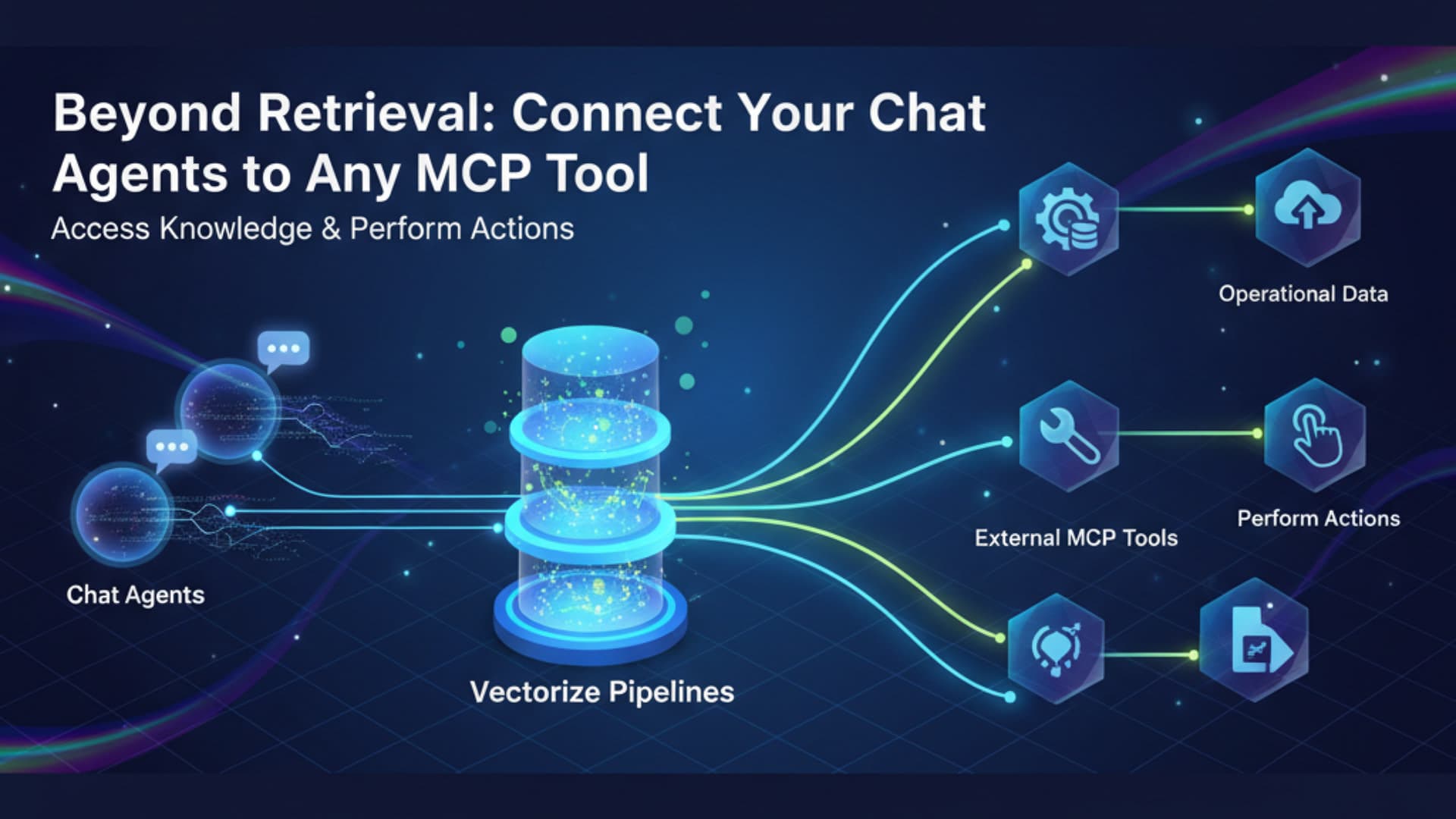
Recently we added fully hosted chat agents to our Vectorize plans. These chat agents connect to your Vectorize pipelines and do agentic retrieval to provide answers to your user’s questions. Coupled with our agent tools, you can create a powerful conversational AI interface in minutes with just a few clicks.
Today we’re introducing even more capabilities to our chat (and widget) agents: External MCP Tools. Now you can configure your chat agents to also call out to remote MCP tools, making your chat agents even smarter and capable. They can access all the knowledge in your pipelines and, with MCP external tool calls, access operational data or even perform actions.
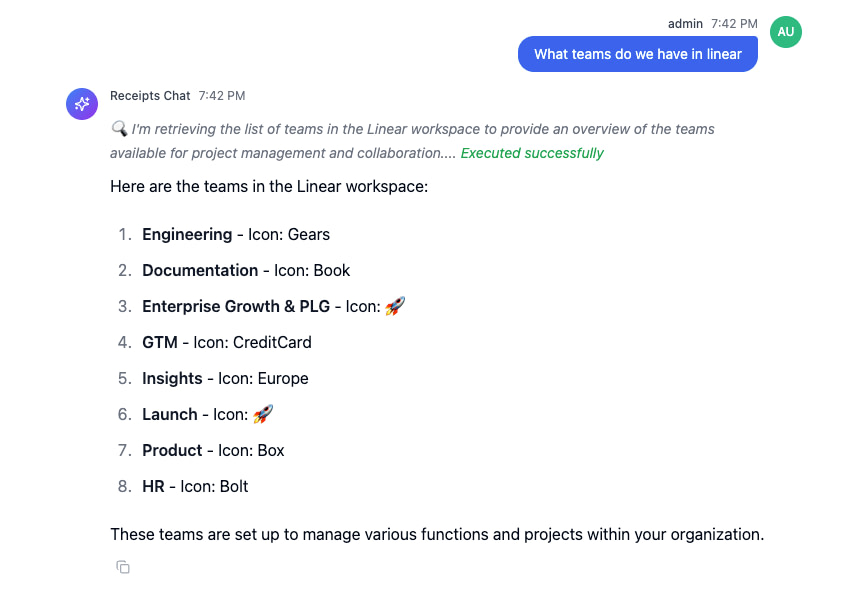
With MCP support growing on a daily basis, the possibilities for your chat agents are endless.
What This Means for Your Agents
Your Chat agents can now, for example:
- Create Linear issues when users report bugs
- Search GitHub issues for relevant reproduction logs
- Update CRM records based on customer conversations
- Query internal databases alongside vector search
- Integrate with any system that speaks MCP
The best part? These external tools work seamlessly alongside your Vectorize retrieval tools, giving your agents both knowledge and agency.
How It Works
Adding external MCP tools is straightforward:
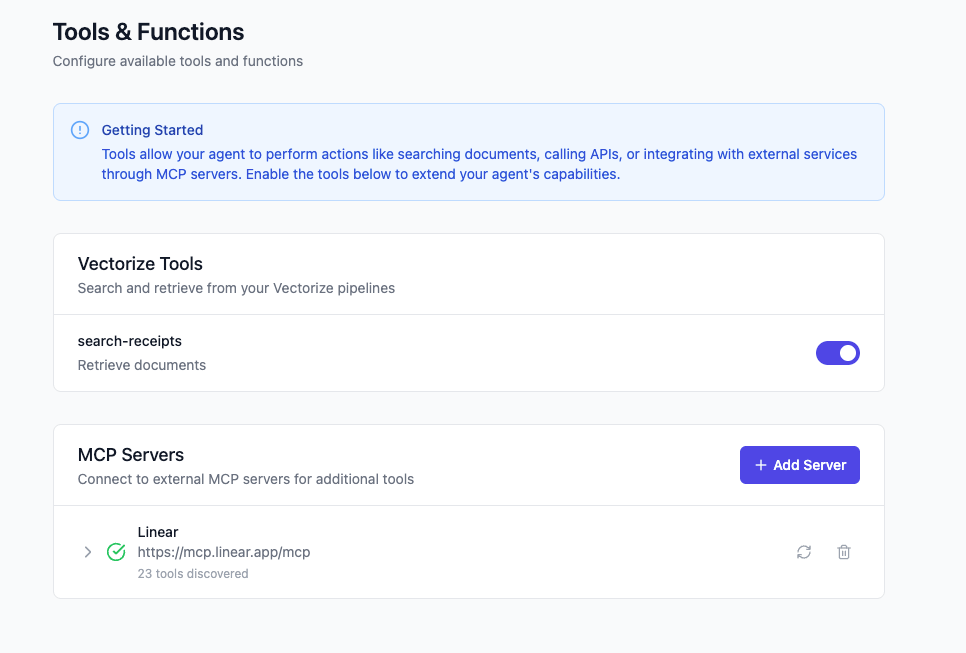
- Navigate to your Chat or Widget agent’s Admin panel
- Click Tools & Functions
- Add a remote MCP Server with its URL and authentication
- Enable the tools you want your agent to use. By default, all tools are disabled, so you need to explicitly enable the tools you want to make available to your agent.
Vectorize handles tool discovery, authentication, and secure communication with external servers.
Secure Authentication
External MCP Tools support multiple authentication methods to work with any remote MCP server. All connections use HTTPS for encrypted communication.
Bearer Token
Bearer token authentication is perfect for API keys and static tokens. Your credentials are stored securely and exchanged with the remote MCP server on secure connection.
OAuth 2.1 with Dynamic Client Registration
For sophisticated integrations, we support the full OAuth 2.1 flow including dynamic client registration. The admin user authenticates once per chat agent, and then all users of the chat agent can access the MCP tools enabled for that MCP server. Token refresh is automatically and securely.
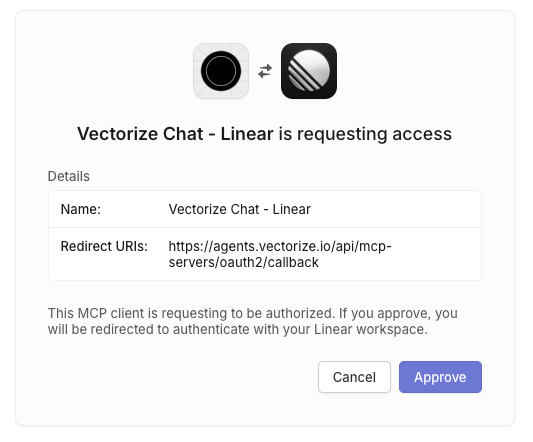
You can also OAuth authentication with static client ID and client secret. This requires additional configuration on the third party MCP server.
Custom Headers
Need to pass special headers like X-API-Key or X-Client-ID? No problem. Configure any headers your MCP server requires. All headers are stored securely.
Real-World Example: Support to Engineering Workflow
Here’s how you can use MCP in our hosted chat agent to find new feature requests that are customer are asking for in your Intercom conversations and convert them into new feature tickets in Linear.
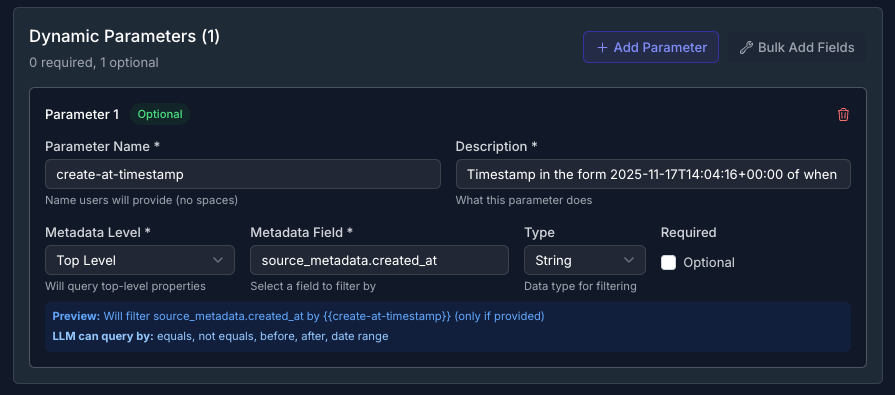
First, create a Vectorize pipeline that connects to Intercom and schedule it to regularly sync your Intercom data. Then create an agent tool that allows for filtering on the created_at metadata that is automatically attached to to the Intercom conversation data. When you add this agent tool to your chat agent application, it allows your chat interface to search the Intercom conversations by their creation date.
Then in the hosted chat application Admin Settings menu (as an admin user), go to the Tools & Functions menu and add the Linear MCP server (https://mcp.linear.app/mcp) using OAuth 2.1 dynamic client authentication.
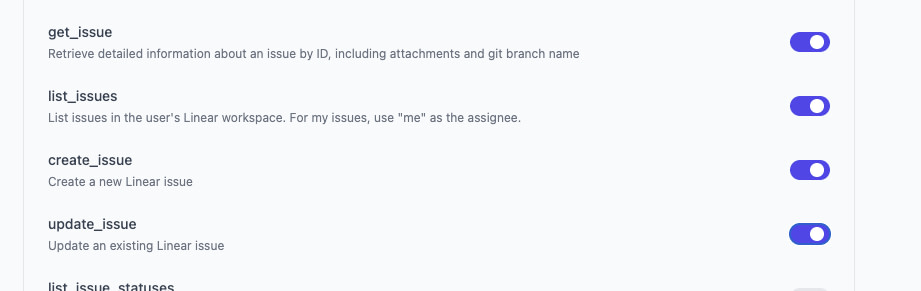
Once you approve the connection, all users of the chat application have to access Linear using MCP. After the authentication exchange, enable Linear tools that allow for viewing and creating issues.
Now you can enter a prompt like “What features did user request in the last week”. That might generate a response that looks like this:
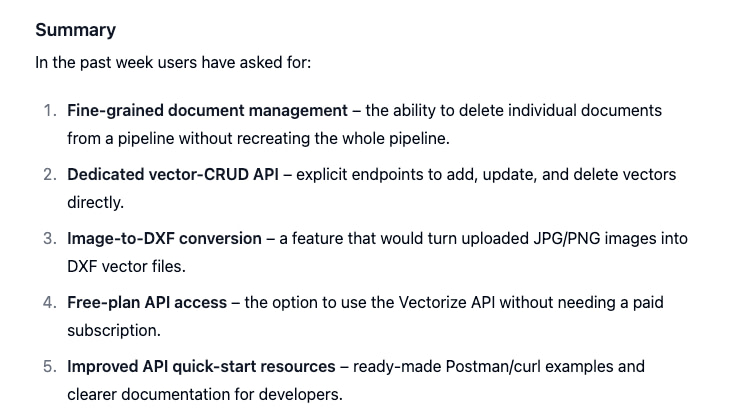
Now say you decide that number 4, Free-plan API access is a feature that you would like to get the product team to evaluate. Then you can just ask to create a Linear issue and get a response like this:
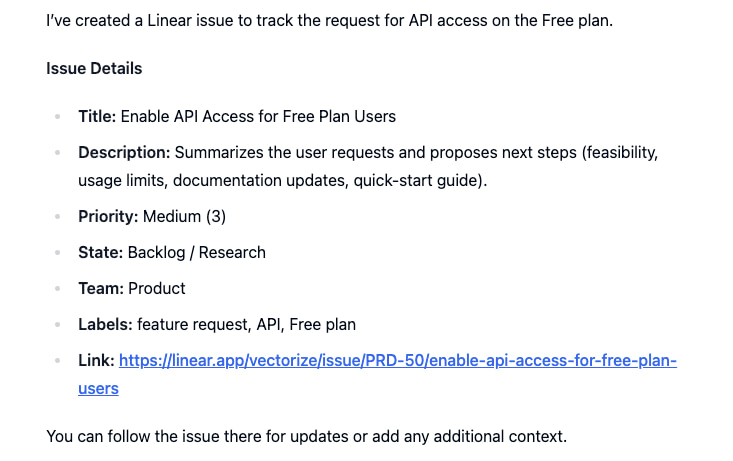
In this example, the agent combined:
- Vectorize retrieval to search Intercom support conversations that are automatically synced by a pipeline
- Context synthesis from multiple conversations to create a list of support requests
- Linear MCP tool to create a detailed issue
Start Building More Capable Agents
External MCP Tools represent a significant step forward in what Chat agents can do. They’re no longer just answering questions – they’re querying your operational data, taking action, integrating with your workflows, and becoming true AI assistants.
Ready to extend your Chat agents? Check out our External MCP Tools documentation to get started.
We’re excited to see what you build with External MCP Tools.
External MCP Tools are available now for all Chat agents (Chat Apps and Chat Widgets). Learn more in our documentation or contact us for a demo.